Great apps are not built once. They are refined.
Your first version is your starting point. The real power comes from iteration; improving layout, refining your UI, adjusting branding, enhancing user flow, and polishing details based on feedback.
In AppForceStudio, redesigning your app is fast, visual, and flexible. You can rework screens using AI, adjust them manually, or even dive into code — all inside the same studio.
This guide will walk you through every way to rework a design in AFS.
Method 1: Rework a Screen Using the Rework Option

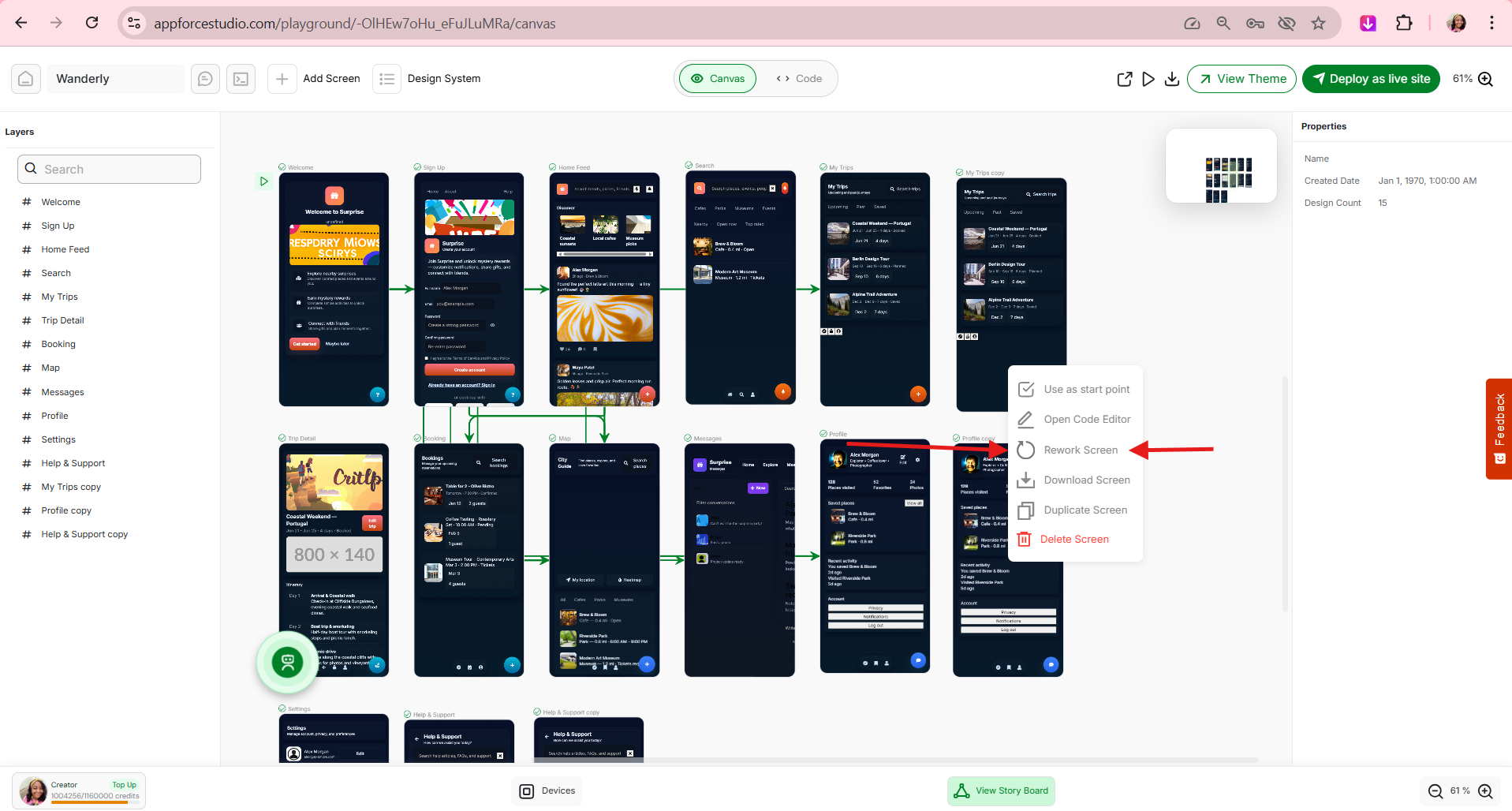
Option A: Right-Click → Rework Screen
- Go to your Playground Canvas.
- Locate the screen you want to redesign.
- Right-click on that screen.
- Select Rework Screen from the menu.
That’s it.
Option B: Use the Rework Icon at the Top of the Screen
At the top of every app screen, you’ll see a horizontal action bar with five icons.
One of them looks like a refresh/recycle symbol.
Clicking that icon also triggers Rework.
Both methods do the same thing.

What Happens After You Click Rework?
When you initiate rework:
- The page reloads.
- You may briefly see a white screen — this means rework is in progress.
- A small rolling/spinning icon appears at the top of the screen being reworked.
- Once processing is complete, the updated version loads automatically.
If the updated design does not show properly, simply reload the Playground to ensure the refreshed version renders correctly.


Seeing the Before and After
Once rework is complete, you will see a visible difference between:
- The original design
- The updated, reworked version
Pro Tip: Duplicate Before Reworking
Before you rework a screen:
- Right-click the screen.
- Select Duplicate Screen.
- Rework the duplicated version.
This allows you to:
- Compare old vs new side-by-side
- Keep the version you prefer
- Experiment safely
Iteration should feel safe. This makes it safe.

Method 2: Rework a Screen Using Code
Sometimes you don’t want a full AI redesign. You want precision.
AFS allows you to rework screens directly through code.
You can access this in two ways:
- Click the </> code icon at the top of the selected screen
- Or right-click → Open Code Editor
Update Design with AI
When you do this, a Code Editor modal opens.

Inside the Code Editor Modal
Inside the modal, you’ll see:
- The file name
- The code preview
- A live device preview on the right
- Two main options at the top right:

1. Modify With AI
Click Modify With AI.
A new prompt modal appears asking:
What would you like to do with this design?
You can enter a clear instruction, for example:
Change the “Create account” button colour to a bright orange.
Then click:
AFS will:
- Update the underlying code
- Apply the visual change
- Reflect the update in the UI
You will immediately see the new button colour in your design.
This is powerful when you want:
- Specific adjustments
- Faster refinement
- Clean AI-assisted changes without manual coding


2. Edit in Code Mode
If you can code, click Edit in Code mode.
This allows you to:
- Directly edit HTML, SwiftUI, Kotlin Compose UI, or other supported code
- Refactor layouts
- Adjust structure
- Fine-tune styling
- Modify logic
AFS handles both approaches well.
You can:
- Prompt when you want speed
- Code when you want control
- Combine both when you want power
This is what makes AFS an ultimate vibecoding app.
Full Code Mode: Advanced Rework
If you switch fully to Code Mode, you’ll see:
- File structure on the left (CSS, JS, HTML, etc.)
- Code editor in the center
- Live device preview on the right
- AI prompt input available

You can:
- Prompt AI to adjust your code
- Edit the code manually
No matter what you choose:
- Changes update live on the right
- The preview behaves like a working prototype
- Buttons are clickable
- Navigation works
- You can test interactions instantly
The right panel is not just a preview. It is a live prototype.
Important: Testing Navigation
If you are adjusting screen structure or flows, make sure your navigation is correctly configured.
Read this guide next:
How to Add Navigation to Your App in AppForceStudio
That article explains how to connect screens properly using Storyboarding so your prototype works exactly as intended.
When Should You Rework a Screen?
Rework when:
- Your layout feels cluttered
- Users are confused
- Your branding changes
- Your MVP needs polish
- You want higher conversion
- You want to modernize your UI
Redesign is not starting over.
It is improving what already works.
Why Reworking in AppForceStudio Is Powerful
Traditional app redesign requires:
- Developer cycles
- Handoffs
- Redesign tools
- More cost
- More delays
In AppForceStudio, you:
- Right-click and rework
- Prompt AI to refine
- Edit code directly
- See live updates
- Test instantly
- Deploy when ready
All in one studio.
You are not rebuilding apps.
You are evolving them.
Final Thoughts
AppForceStudio gives you three levels of control:
- Visual rework with one click
- AI-assisted refinement with prompts
- Full manual code editing
Whether you are:
- A non-technical founder
- A designer transitioning into app development
- A hybrid developer-designer
- A seasoned engineer
AFS adapts to you.
Redesigning your app should not be stressful.
It should feel creative.
Open your Playground today and rework one screen.
Improve it. Compare it. Refine it.
Because great apps are not built once. They are continuously reworked.
👉 Try AppForceStudio now and redesign your app smarter, faster, and without friction.
Build. Refine. Launch.
All in one place.
Frequently Asked Questions (FAQ)
1. What does “Rework Screen” do in AppForceStudio?
Rework Screen allows you to automatically redesign an existing app screen using AI. It analyzes your current layout and updates the UI while preserving structure and functionality.
You can trigger it by:
- Right-clicking a screen → Rework Screen
- Clicking the refresh/recycle icon at the top of the screen
2. Will reworking a screen delete my content?
No.
Reworking updates the design and layout, but it does not delete your content. However, for safety, we recommend duplicating the screen first so you can compare versions and keep the one you prefer.
3. What should I do if the updated design is not showing?
If the changes are not immediately visible:
- Reload the Playground.
- Wait for the rolling/spinning icon to complete.
- Ensure the rework process has finished.
Refreshing the page usually resolves display delays.
4. Can I undo a reworked design?
There isn’t a traditional undo button for rework. That’s why duplicating the screen before reworking is highly recommended.
Duplicate → Rework → Compare → Keep the better version.
5. What is the difference between Rework and Modify With AI?
Rework Screen
- Automatically redesigns the entire screen layout
- Best for structural UI improvements
Modify With AI
- Allows you to prompt specific changes
- Example: “Make this button bigger” or “Change the background to a light gradient”
- Updates the underlying code and UI accordingly
Rework is broad. “Modify With AI” is precise.
6. Do I need coding skills to redesign my app?
No.
You can:
- Use visual rework tools
- Prompt AI to update your design
- Edit layout from the Canvas
However, if you can code, you can switch to Code Mode and make direct edits.
AFS supports both non-technical and technical users seamlessly.
7. What is Code Mode in AppForceStudio?
Code Mode allows you to:
- Edit your app’s HTML, SwiftUI, Kotlin Compose UI, and other supported formats
- Prompt AI to update code for you
- See changes live in a working prototype on the right
It combines:
- AI-assisted editing
- Manual precision
- Real-time preview
8. Can I test my app while redesigning it?
Yes.
The right-side preview in Code Mode behaves like a live prototype. Buttons work. Navigation works. Interactions can be tested immediately.
For proper flow setup, read:
How to Add Navigation to Your App in AppForceStudio
9. Is AppForceStudio good for “vibe coding”?
Yes.
AFS allows you to:
- Prompt changes naturally
- Instantly see updates
- Refine visually
- Switch to code when needed
You can move fluidly between AI prompts and manual control. That is what makes it a powerful vibecoding environment.