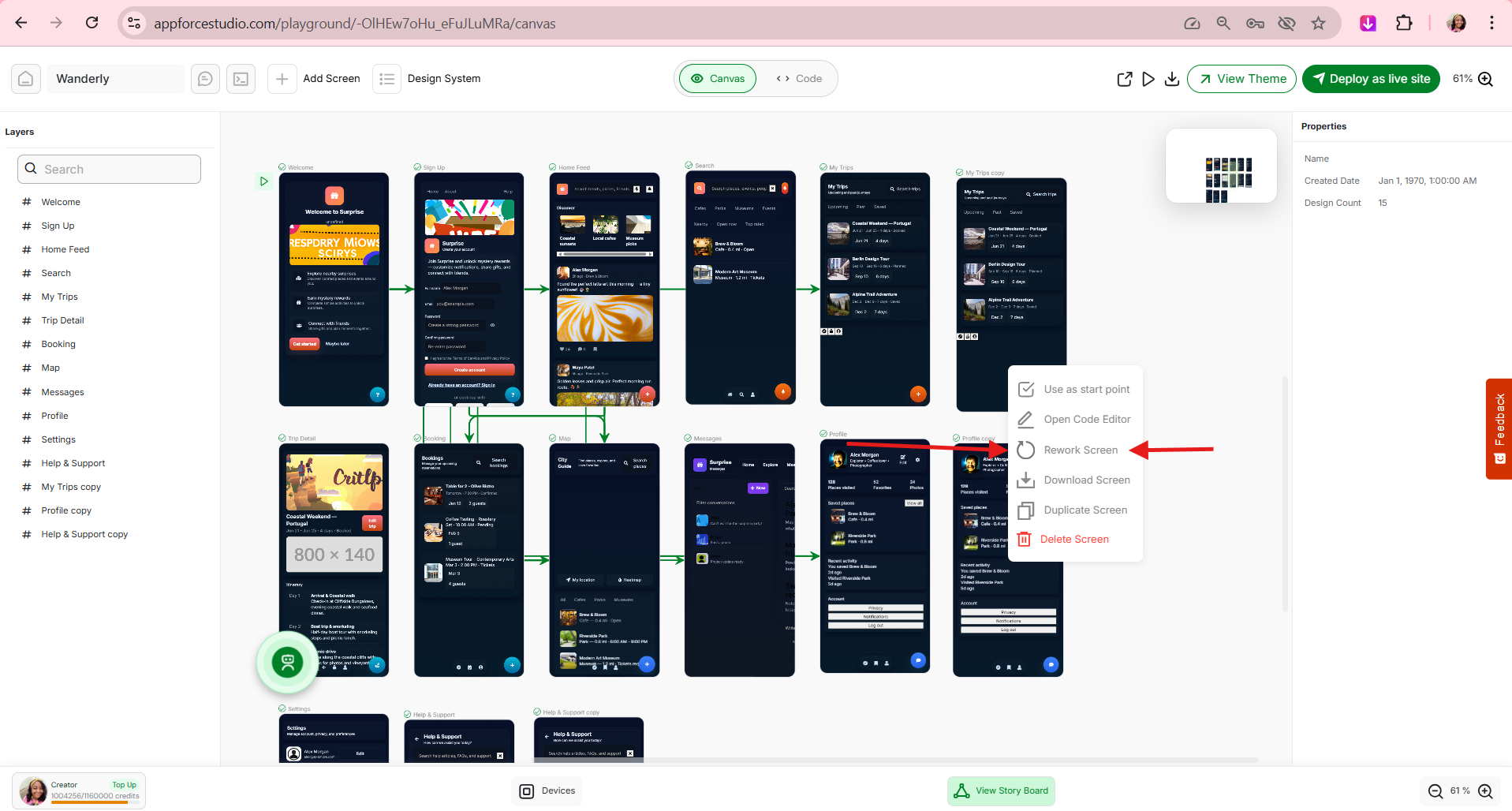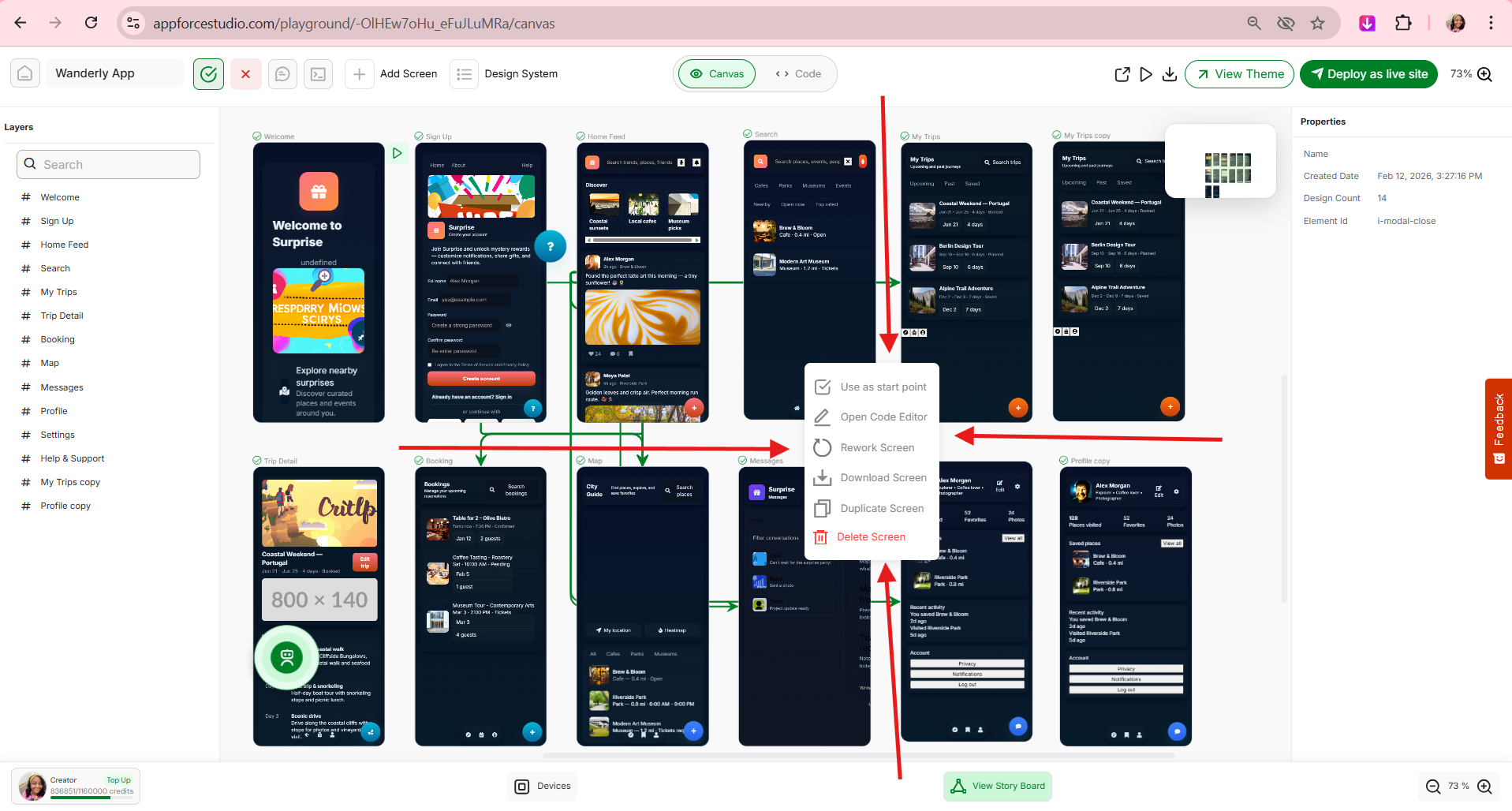
The right clicking options in AppForceStudio give you powerful screen-level control inside the Playground Canvas.
When you’re building an app, speed matters. Instead of navigating multiple menus, the right clicking options in AppForceStudio allow you to manage screens instantly — edit code, duplicate layouts, export files, and restructure your app in seconds.
These tools are designed to keep you in creative flow while giving you full flexibility.
Let’s walk through how they work.
Where Right Clicking Options in AppForceStudio Appear
Inside the Playground Canvas, when you right-click on a screen, a context menu appears with the following options:
- Use as start point
- Open Code Editor
- Rework Screen
- Download Screen
- Duplicate Screen
- Delete Screen
These right clicking options in AppForceStudio apply to the entire screen, not just individual elements.
Think of it as your screen command center.

1. Use as Start Point
This sets the selected screen as the first screen users see when your app launches.
When to use it:
- You redesigned your home screen.
- You want to test a new onboarding flow.
- You are preparing a demo for investors.
- You’re validating a new MVP structure.
Instead of restructuring navigation manually, you define your app’s entry point in seconds.
This is especially useful during prototyping and rapid iteration.
2. Open Code Editor
When you select Open Code Editor, a modal opens showing the full code for that specific screen.
By default, it opens in Read Only mode. At the top, you’ll see:
- The file name
- A Modify With AI button
- An Edit in Code Mode button
This gives you two powerful paths.

Option A: Edit in Code Mode
Click Edit in Code Mode to manually modify the screen’s code.
Use this when:
- You want precise layout control.
- You need to adjust structure or styling.
- You’re adding custom logic.
- You’re optimizing performance.
AFS supports HTML, SwiftUI, and Kotlin Compose UI AppForceStudioFeatureList — allowing you to work across web, iOS, and Android environments.
You are not locked into a visual builder. You have full code access when you need it.
Option B: Modify With AI
Click Modify With AI, describe what you want changed, and the AI updates the code directly.
For example:
- “Increase the header font size.”
- “Make the background dark.”
- “Add spacing between sections.”
- “Convert this layout into a grid.”
The AI edits the code for you.
This means:
- Non-technical users can safely update code.
- Developers can move faster.
- You reduce risk of breaking structure.
- Changes happen instantly.
Visual building meets intelligent code control.
3. Rework Screen
Rework Screen allows you to refine or restructure a screen without deleting it.
Use it when:
- The layout feels off.
- You want a cleaner hierarchy.
- You need AI-assisted improvements.
- You want a better version without rebuilding.
AFS is built for iteration, not friction.
Rework keeps your progress while improving your design.
Download Screen
When you click Download Screen, a modal appears with multiple export options.

You can export the screen as:
- HTML Project
- Screenshot Image
- Kotlin
- Swift
Here’s what each does:
HTML Project
Downloads a web-ready HTML version of the screen. Ideal for browser testing or web integration.
Screenshot Image
Exports a static image of the screen. Perfect for investor decks, documentation, and marketing previews.
Kotlin
Generates Android-ready Kotlin code for use in Android Studio.
Swift
Generates Swift code for use in Xcode and iOS development.
This connects directly to AFS’s ability to generate website and native app files.
You design once. Export wherever you need.
Duplicate Screen
Duplicate instantly creates a copy of the selected screen.
Use it when:
- Creating variations for testing.
- Building similar feature flows.
- Repurposing layouts.
- Expanding app sections quickly.
Instead of rebuilding from scratch, duplicate and refine.
This dramatically speeds up MVP development.
6. Delete Screen
Delete removes the selected screen from your project.
Use it when:
- Cleaning up experiments.
- Simplifying your MVP.
- Removing unused flows.
- Refining user journeys.
Intentional building leads to better apps.
A Simple Workflow Example
Let’s say you’re building a travel app.
- Create a City Guide screen.
- Right-click → Duplicate Screen.
- Rename it to Museum Guide.
- Adjust content.
- Right-click → Open Code Editor.
- Use Modify With AI to refine layout.
- Download as Screenshot for your pitch deck.
What could take hours in traditional workflows now takes minutes.
This is how AppForceStudio removes the tech overwhelm and keeps you in creative flow.
Why Right Clicking Options in AppForceStudio Matter
The right clicking options in AppForceStudio may seem simple at first glance, but they represent something powerful:
- Speed
- Ownership
- Flexibility
- Creative control
They remove unnecessary friction from the app-building process and allow you to iterate faster without losing structure.
AppForceStudio is built to make building feel smooth.
Not overwhelming.
Not fragmented.
Just focused.
Try It
Open the Playground.
Right-click on one of your screens.
Explore each option.
Build faster. Iterate smarter. Launch sooner.
Download the AppForceStudio AI App Builder from the App Stores and start building today.