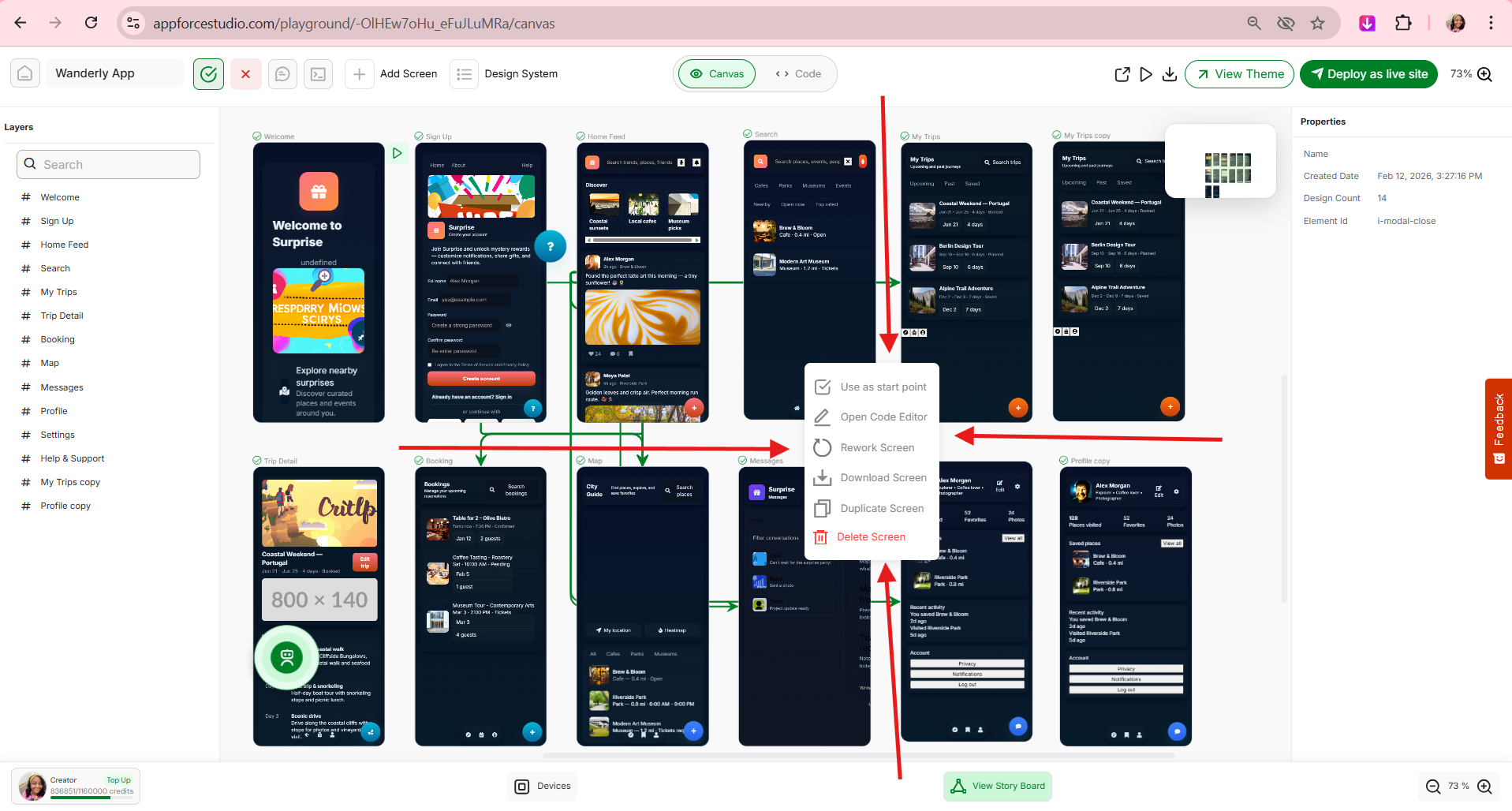
If you have built an app inside AppForceStudio and want others to use it, you can publish it as a template in just a few steps.
Publishing your template allows other users to view it, edit it, and use it as a starting point for their own apps.
You can publish a template from both:
- The AppForceStudio Web Playground
- The AppForceStudio Mobile App
In this guide, you will learn exactly how to publish your template step by step.
What Does Publishing a Template Mean?
When you publish a template in AppForceStudio:
- Your app design becomes reusable
- It gets its own public template page
- Other users can click “Use this template.”
- You appear as the creator
This is perfect for creators, founders, designers, and developers who want to share or reuse app structures.
What Does Publishing a Template Mean?
When you publish a template in AppForceStudio:
- Your app design becomes reusable
- It gets its own public template page
- Other users can click “Use this template.”
- You appear as the creator
This is perfect for creators, founders, designers, and developers who want to share or reuse app structures.
Step 1: Open Your Project in Playground
First, open the app project you want to publish.
You can do this:
- On Web at appforcestudio.com
- On the AppForceStudio mobile app
Make sure your design is complete and ready to be shared.
Step 2: Click “Publish as Template”
Inside the playground, look at the top right corner.
Click the green button labeled:
Publish as template
This opens the publishing modal.

Step 3: Add Your Thumbnail and Preview Images
At the top of the modal, you will see the Thumbnail section.
Here you can:
- Upload a main thumbnail image
- Add additional preview images
- Edit your selected thumbnail
For best results:
- Use 1600 x 1600 resolution or higher
- Use high-quality images
- Keep your visuals clean and clear
Your thumbnail is what users will see first, so make it strong.

Step 4: Fill in Template Details
Next, complete the required information.
Name
Enter the name of your template.
Make it clear and descriptive.
Example:
Food Delivery App Template
Fitness Tracker Dashboard
E-commerce Store Starter Kit
Category
Choose a category from the dropdown list.
Examples include:
- Business
- Developer Tools
- Education
- Entertainment
- Finance
- Food & Drinks
Choose the category that best fits your app.

Tags
Add relevant tags that describe your template.
Example tags:
app
mobile
dashboard
ecommerce
food
Tags help users discover your template.
Description
Write a short description explaining what your template does.
Be specific. Mention the type of app and who it is for.
Example:
A food delivery app template with restaurant listings, cart, checkout, and order tracking screens.
Step 5: Confirm Your Publishing Profile
At the bottom of the modal, you will see the profile you are publishing as.
If needed, click Edit profile to update your information.
This ensures your name appears correctly on the template page.
Step 6: Click “Publish Template”
Once everything is filled in, click:
Publish Template
Your template is now published.

What Happens After You Publish?
After publishing:
- The “Publish as template” button changes to “View Theme.”
- Your template gets its own dedicated page
- Users can:
- View your design
- Click “Use this templat.e”
- Edit and customize it
- You appear as the creator
You can click View Theme to see exactly how your template looks publicly.

Can You Publish from Mobile?
Yes.
You can publish a template directly from the AppForceStudio mobile app.
The steps are the same:
- Open your project
- Tap Publish as template
- Add thumbnail and details
- Tap Publish Template
You can build and publish entirely from your phone.
Why Publish a Template?
Publishing templates allows you to:
- Share reusable app structures
- Build faster by reusing your own designs
- Contribute to the AppForceStudio ecosystem
- Showcase your work publicly
If you are building frequently, publishing templates saves time and builds your presence.
If you’ve created something awesome – whether via prompt, screenshot, or code – and want to share it or reuse it later, exporting it as a template is the way to go.
Start Building and Publish Your First Template
You can build and publish using:
- The Web Playground
- The AppForceStudio Mobile App
Start building your app today and turn it into a reusable template in minutes.
Download the AppForceStudio AI App Builder from the App Stores or start building instantly on the web at https://appforcestudio.com